| Step | Tools/Actions | Purpose/Description |
|---|---|---|
| 1. Environment |
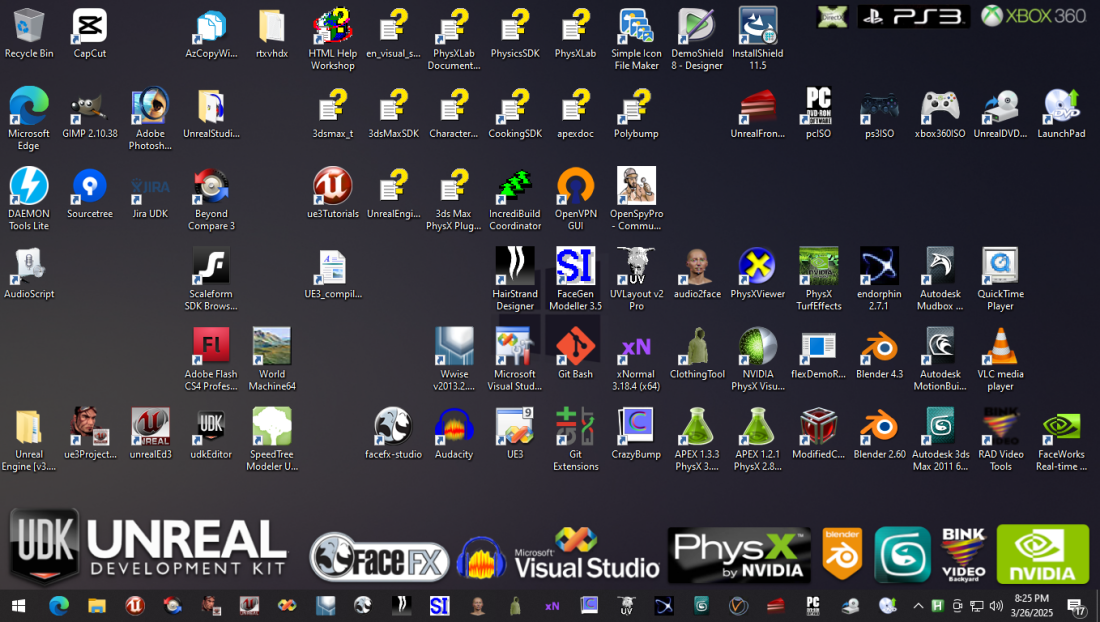
- Windows 10 - Visual Studio 2008 - Unreal Engine 3 MVS2008 - Unreal Frontend - Unreal Editor |
Pre-configured Visual Studio 2008 with Unreal Engine 3 source code, Incredibuild 5.0, Virtual Assist X, UnrealScript |
| 2. Create/Set Up Project |
- Unreal Engine 3 MVS2008 - Unreal Engine 3 IDE - Unreal Editor |
Create or open a game project in Unreal Engine 3. Set up the folder structure (e.g., Src, Assets) and begin adding game logic. |
| 3. Write & Compile Code |
- UnrealScript - Visual Studio 2008 - Incredibuild 5.0 |
Write and edit UnrealScript for gameplay and mechanics. Use Incredibuild 5.0 to speed up unrealscript or source code compilation. |
| 3.5. Implement Multiplayer Systems |
- UnrealScript (Replication) - Unreal Editor (Network Play in PIE) - Dedicated Server Build - Unreal Online Subsystem |
Implement networked gameplay using UnrealScript’s replication system. Replication: Set up replicated variables, functions, and roles (Authority, Remote, SimulatedProxy). GameModes: Implement multiplayer rules and logic for PlayerControllers, GameState, and Scoreboards. Session Management: Use Online Subsystem to handle matchmaking, host/join functionality (LAN or Steam). Testing: Use PIE with multiple clients or launch dedicated server instances to test synchronization, latency, and gameplay edge cases. |
| 4. Create and Import Assets |
- 3dsMax2011 (Epic's ActorX to export) - Texture Tools - WWise Audio Editor - Unreal Editor |
In this phase, production assets are imported into Unreal Engine 3: Models (PSK): Import skeletal meshes for characters and objects. Animations (PSA): Import animation files and link them to the corresponding skeletal meshes. FaceFX (FXA): Import face animations for characters. Audio (WAV): Import audio files and create SoundCues or Sound Mixers. Physics (PSA): Ragdolls and physics for characters and objects. Physics (PSA): Constraints (e.g., hinges, ropes) for interactive objects. AnimTree: Create AnimTrees for characters, player, AI, and camera movement. Textures (PNG): Import 2048x2048 DXT1/DXT5 textures for levels, characters, and decals. Materials: Create materials using imported textures for objects and environments. Unreal Cascade: Create particle effects like fire, smoke, explosions, and weather. UnrealScript: Import UnrealScript files for AI, player logic, and other gameplay systems. Compile using Unreal Frontend. After import, assets are placed in levels and optimized for performance and visual quality. |
| 5. Design Levels |
- Unreal Editor - Terrain Editor - Unreal Kismet - Unreal NavMesh - Unreal Matinee - Unreal Lighting - Level Streaming |
- Unreal Editor: Create/open levels, place assets, configure lighting - Terrain Editor: Set up level geometry, terrain, terrain textures, grass, wind, rain, clouds, snow - PhysX Integration: Set up physics, destructible objects, and collisions. - Unreal Kismet: Create interactive elements and gameplay logic using visual scripting. - Unreal NavMesh: Set up navigation paths for AI characters - Unreal Matinee: Create and control cutscenes and scripted sequences. - Unreal Lighting: Design lighting, sun, colors - Level Streaming: Dealing with large environments or multiple sub-levels |
| 6. Test and Debug |
- Unreal Editor (Play in Editor) - Visual Studio Debugger |
Test game mechanics in real-time using Play In Editor (PIE) in Unreal Editor. Debug UnrealScript with Visual Studio’s debugger. |
| 7. Cook Maps & Package Assets |
- Unreal Frontend |
Cook maps for target platforms and prepare assets for use in the final game. Package the assets and game files for testing or release. |
| 8. Cook Lighting |
- Unreal Editor with BEAST |
Cook lighting for the final game build using BEAST (Better Environmental and Ambient Static Lighting) for realistic lighting and shadow effects. Ensure lighting is optimized for target platforms before final packaging. |
| 9. Optimize |
- Unreal Profiler - Incredibuild 5.0 |
Optimize game performance using profiling tools and adjust scripts and assets to improve performance (e.g., reduce memory usage). |
| 10. Deploy | - Unreal Frontend | Package the final game build(.ISO) and deploy for testing or release. Distribute the game to test environments or finalize for release. |
| Tool | Purpose |
|---|---|
| JIRA Project Management | Project management and task tracking for team collaboration, sprint planning, and issue tracking.
https://jira.atlassian.com/ue3project |
| BitBucket with Git LFS | Source control system with support for large binary files, used for managing game source code and
assets
across teams. https://bitbucket.atlassian.com/ue3project |
| Crawl4AI RAG | AI-powered semantic search and code analysis system that integrates with Jira and Bitbucket to trace
commits,
tickets, code changes, and documentation across the UE3 project.
https://api.rag.ue3project.com |
| OpenVPN for Incredibuild 5.0 | Enables secure LAN connectivity for distributed compilation across PCs using a VPN, ensuring smooth
communication and collaboration.
Learn more: https://openvpn.ue3project.com |
| UE3 VHD Team | Pre-configured virtual hard disk (rtx2udkfixed.vhd) one-click workstation setup for team
members. https://vhdvm.blob.core.windows.net/vhdvm/rtxvhdx/rtx2udkfixed.vhd |
| Unreal Engine 3 VM Image - Nvidia RTX | Pre-configured virtual image on Azure, clone remote workstations for team members. https://portal.azure.com/#@gabzsongdrop.onmicrosoft.com/resource/subscriptions/bfd2dc10-f4ea-4cc0-95c8-6ab6d43d26cf/resourceGroups/nvidiaRTX/providers/Microsoft.Compute/galleries/rtx2udk/images/rtx2udk/versions/1.0.1 In-bound Ports configuration: |
| reset_sunshine_PCNAME.ps1 | Reset the Sunshine low-latency streaming UID, remove any connected devices, and rename the PC for
proper
identification in the network. (Run during cloning) https://rtxscripts.blob.core.windows.net/rtxscripts/reset_sunshine_PCNAME.ps1 |
| configure_sourcetree_with_url.ps1 | Configures to auto-clone git unreal engine project (Run during cloning) https://rtxscripts.blob.core.windows.net/rtxscripts/configure_sourcetree_with_url.ps1 |
| Try out with Moonlight | Connect to a 24/7 UE3 Workstation with Moonlight https://cdn.sdappnet.cloud/docs/rtxue3.html?url=1.23.02.1.2 |